
Test SharePoint webhooks using webhook.site
webhook.site is a great tool for testing webhook callouts. It is especially useful for testing webhook provisioning, so you can verify that the subscription is created correctly. This post is a quick guide to testing SharePoint webhooks with webhook.site.
When using webhook.site, you get a unique URL for your webhook. Grab this URL; it will be the notification endpoint for the webhook subscription.
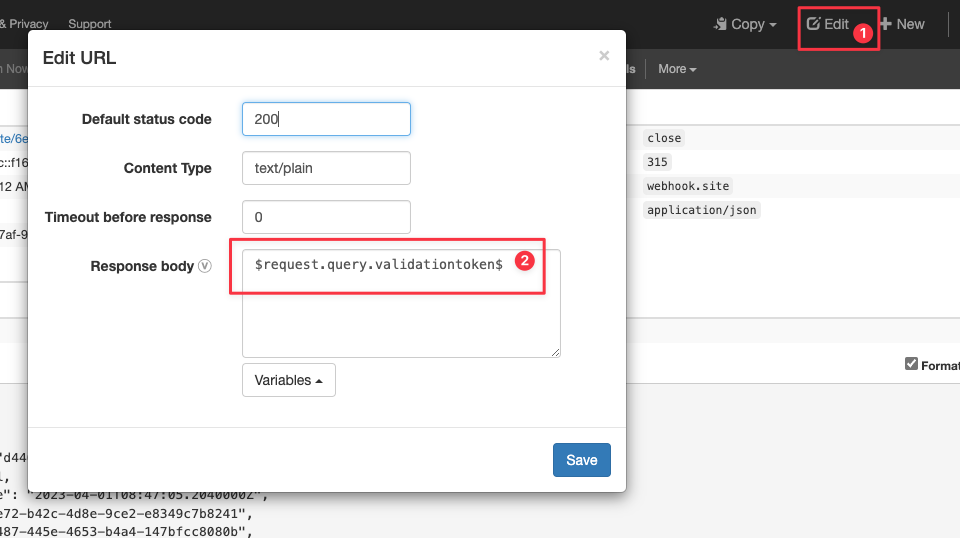
Before we can set up a webhook subscription on our SharePoint list, we need to make sure the webhook returns a valid response. Otherwise, SharePoint will reject it as invalid. To do this, click the edit button (1) and add $request.query.validationtoken$ to the response body (2). This returns the validation token to SharePoint, which then validates the webhook subscription.
Now we can create a webhook subscription on our SharePoint list. The easiest way to do this is to use PnP PowerShell.
Connect-PnPOnline -Url https://<tenant>.sharepoint.com/sites/<site> -Interactive -ClientId <EntraAppClientId>
Add-PnPWebhookSubscription -List <list> -NotificationUrl https://webhook.site/<uuid> -ExpirationDateTime (Get-Date).AddDays(1)
This should return a response similar to the following:
Id                 : a2bd14de-638a-4fa4-bbe4-6a9a946e524f
ClientState        : null
ExpirationDateTime : 01/04/2023 14:19:31
NotificationUrl    : https://webhook.site/<UUID>
Resource           : 3c712e72-b42c-4d8e-9ce2-e8349c7b8241
If you do not add the validation token to the response body, you will get an error similar to the following:
Add-PnPWebhookSubscription: {"odata.error":{"code":"-1, System.InvalidOperationException","message":{"lang":"en-US","value":"Failed to validate the notification URL 'https://webhook.site/6e054c6e-2bd1-4593-b36c-92fcfc357fa2'."}}}
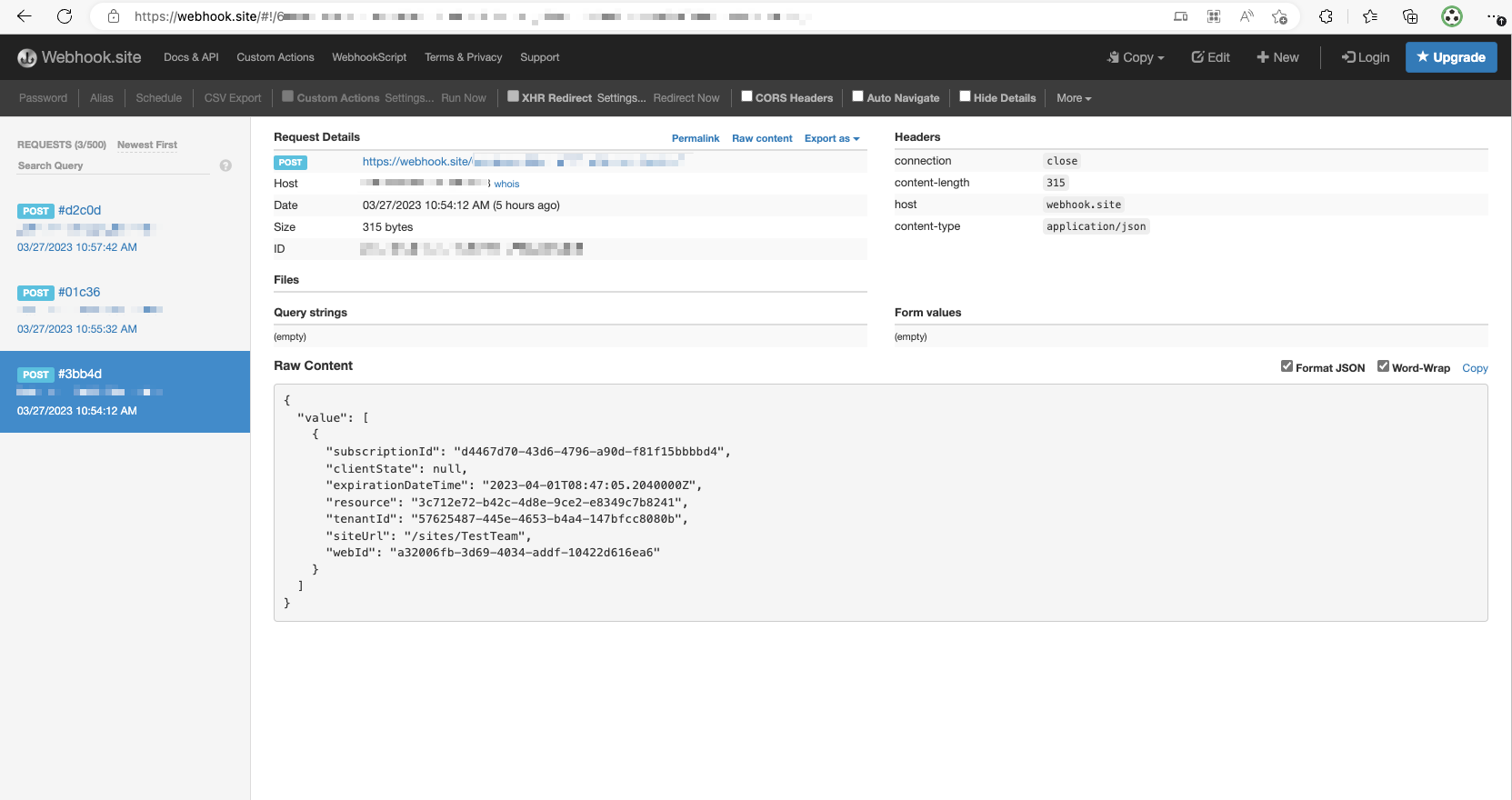
After successfully creating the webhook subscription, you can now monitor the webhook calls in webhook.site. Note that it may take 30 seconds or so before a call is registered.